How to Invite Contributors
Audience: Archivists — people inviting family members or other contributors to share memories about a batch.
A contributor is anyone you invite to share their memories about the photos in your batch. They don't need to create an account — they access the collection through a unique invite link that you generate and share with them.
How Contributor Access Works
Each contributor gets their own private invite link (e.g., https://zeuge.io/c/abc123xyz). When they open it:
- They are greeted by name (the name you give them when you create the invite).
- They see only the photos in that specific batch — not any other batches or archives.
- They can record voice, video, or text memories.
- No account creation or password is required.
Step 1 — Open the Contributors Tab
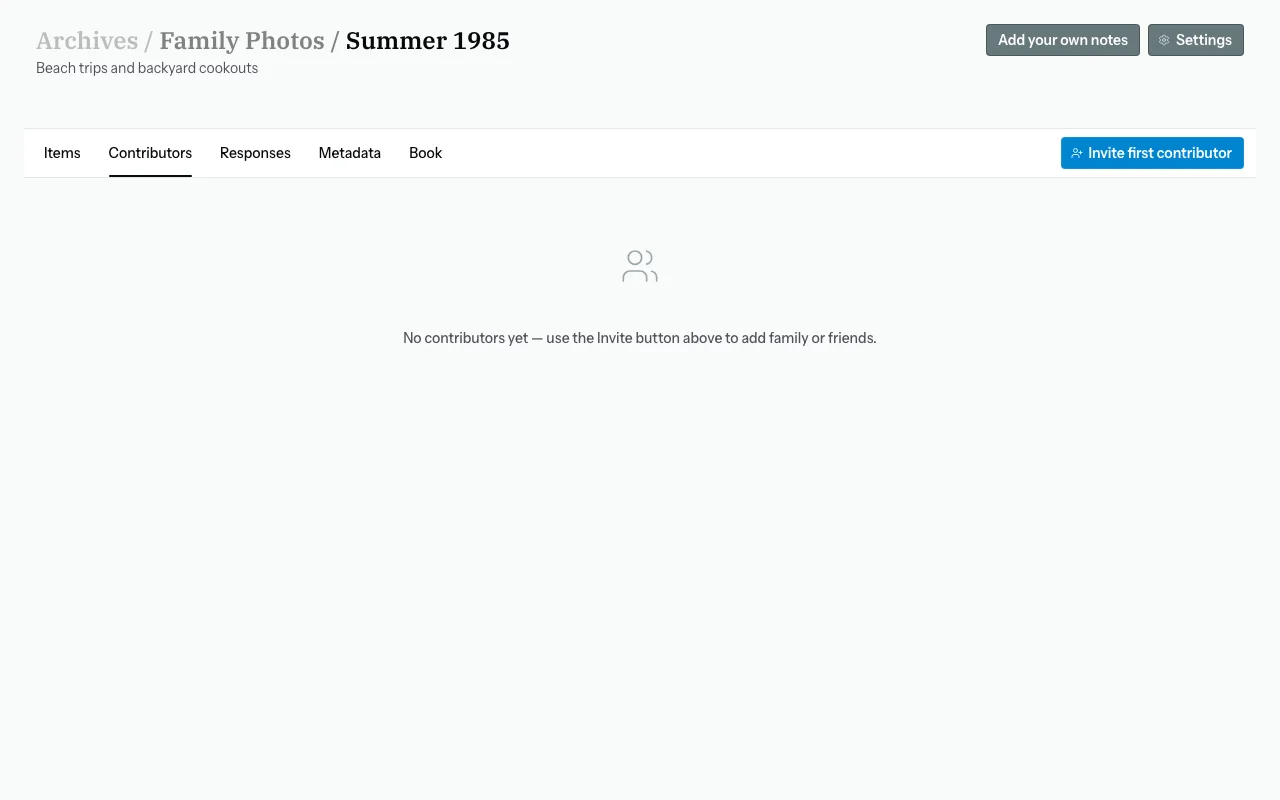
From your batch detail page, click the "Contributors" tab.
Step 2 — Add a Contributor
Click "Invite first contributor" (or "Invite" if contributors already exist). A dialog will appear with these fields:
| Field | Required? | Notes |
|---|---|---|
| Name | Yes | The name shown to the contributor on their welcome screen (e.g., "Dad," "Aunt Ruth," "Karen") |
| Yes | Used to prevent accidentally inviting the same person twice. No email is sent automatically. | |
| Relationship | No | How this person relates to the material — e.g., "granddaughter," "family friend." For your reference only. |
| Expiration Date | No | If set, the link will stop working after this date. Useful for time-limited collection windows. |
Tip on Names: Use a name the contributor will recognize — their first name, a nickname, or a familiar address like "Grandma." They will see "Hello, [Name]!" when they open their link.
Click "Add" to create the invite.
Step 3 — Copy and Share the Invite Link
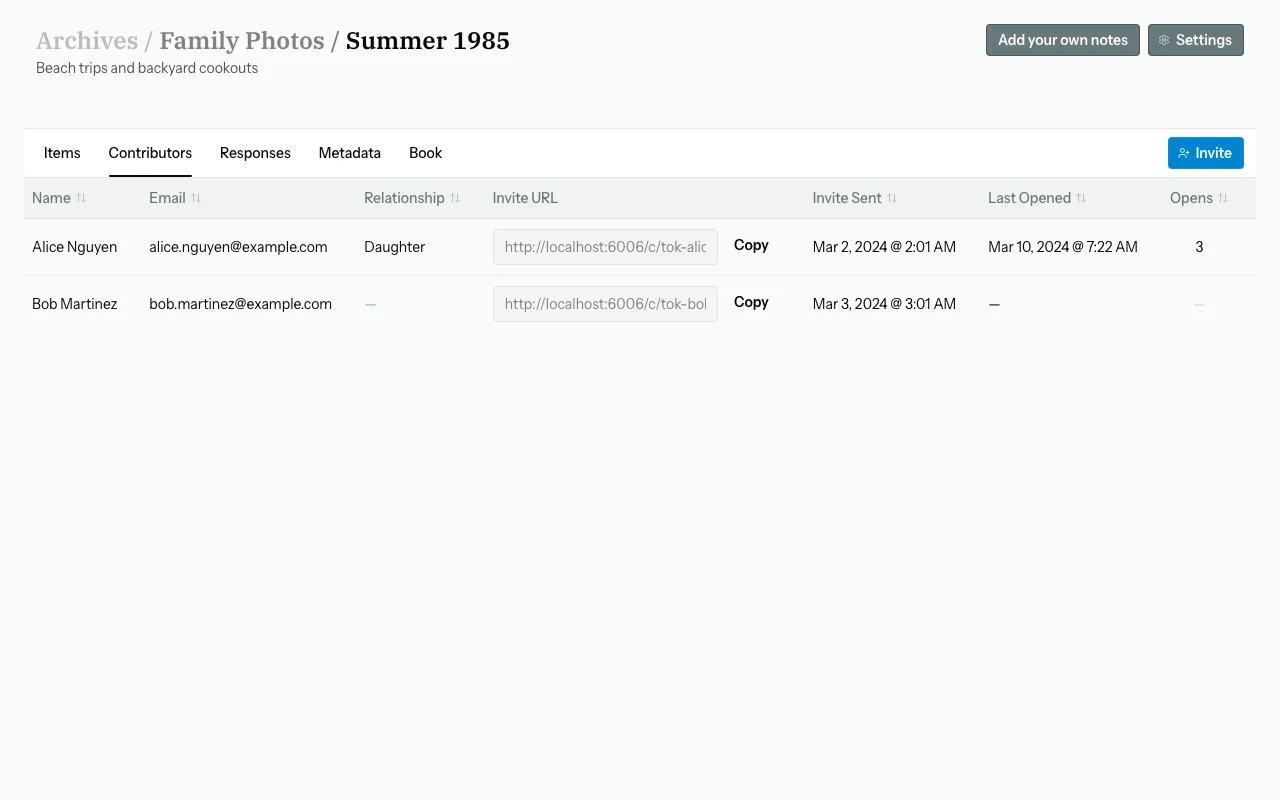
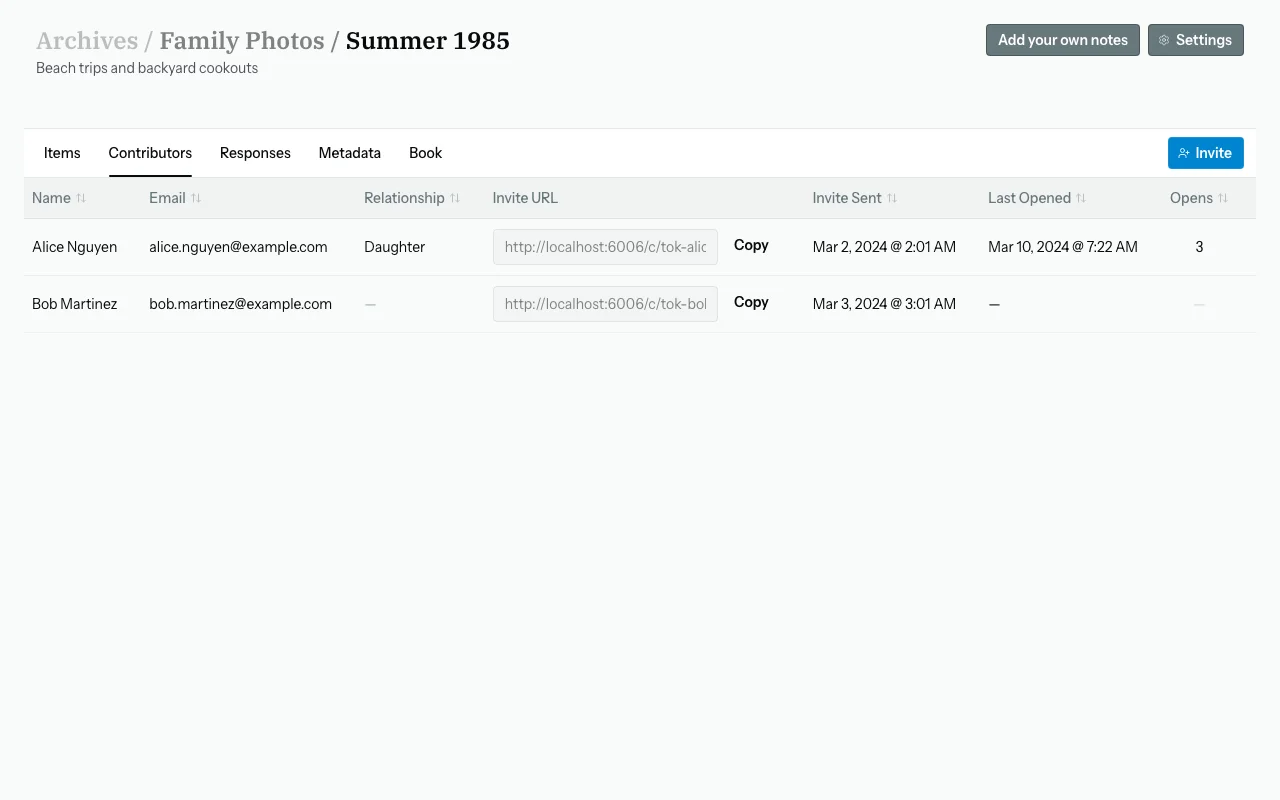
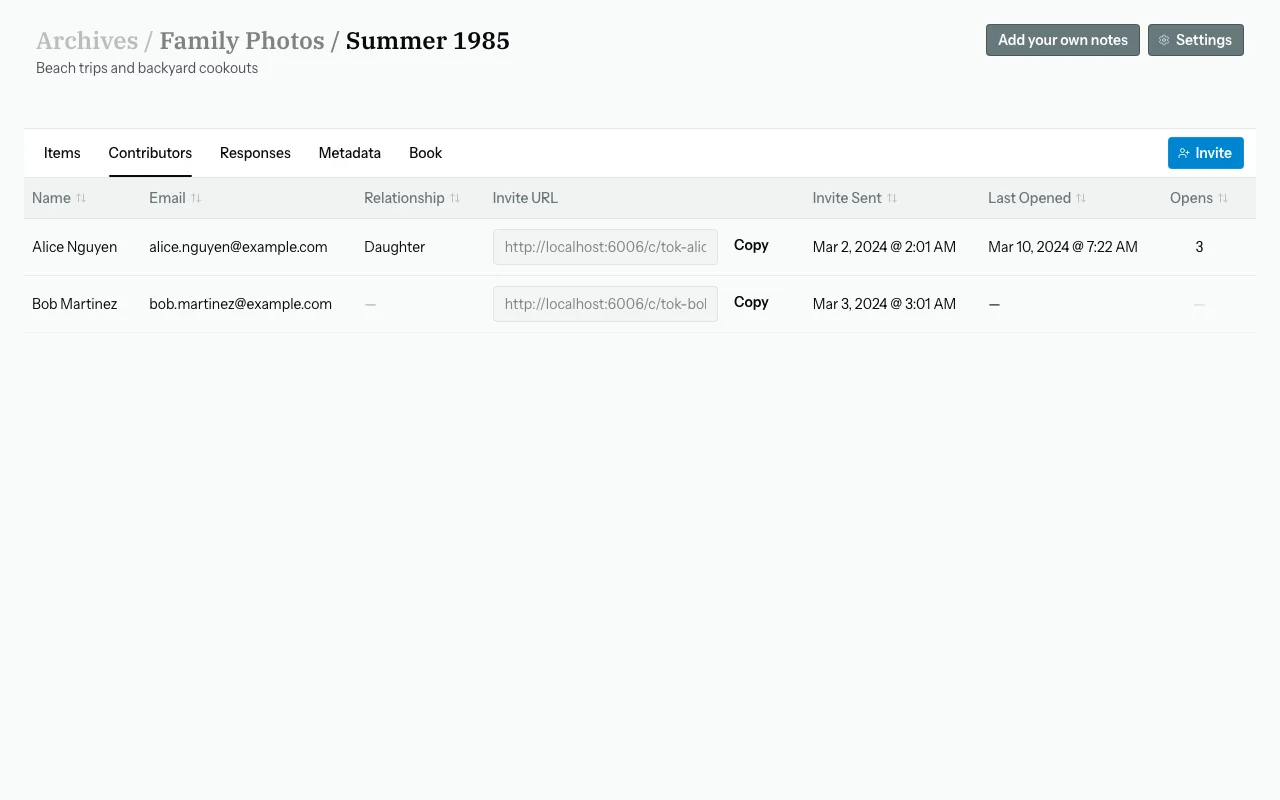
After creating the contributor, their entry will appear in the contributors list with a unique invite link.
Click the copy icon next to the link to copy it to your clipboard.
Now share the link with them however you prefer:
- Email — paste it into an email you send them
- Text message / SMS — paste it into a text
- WhatsApp, iMessage, Messenger — any messaging app works
- Print it out — for contributors who prefer a QR code or typed URL
Important: Each link is unique to that contributor and that batch. Don't share the same link with multiple people — create a separate invite for each person so their contributions are tracked individually.
Step 4 — Manage Existing Contributors
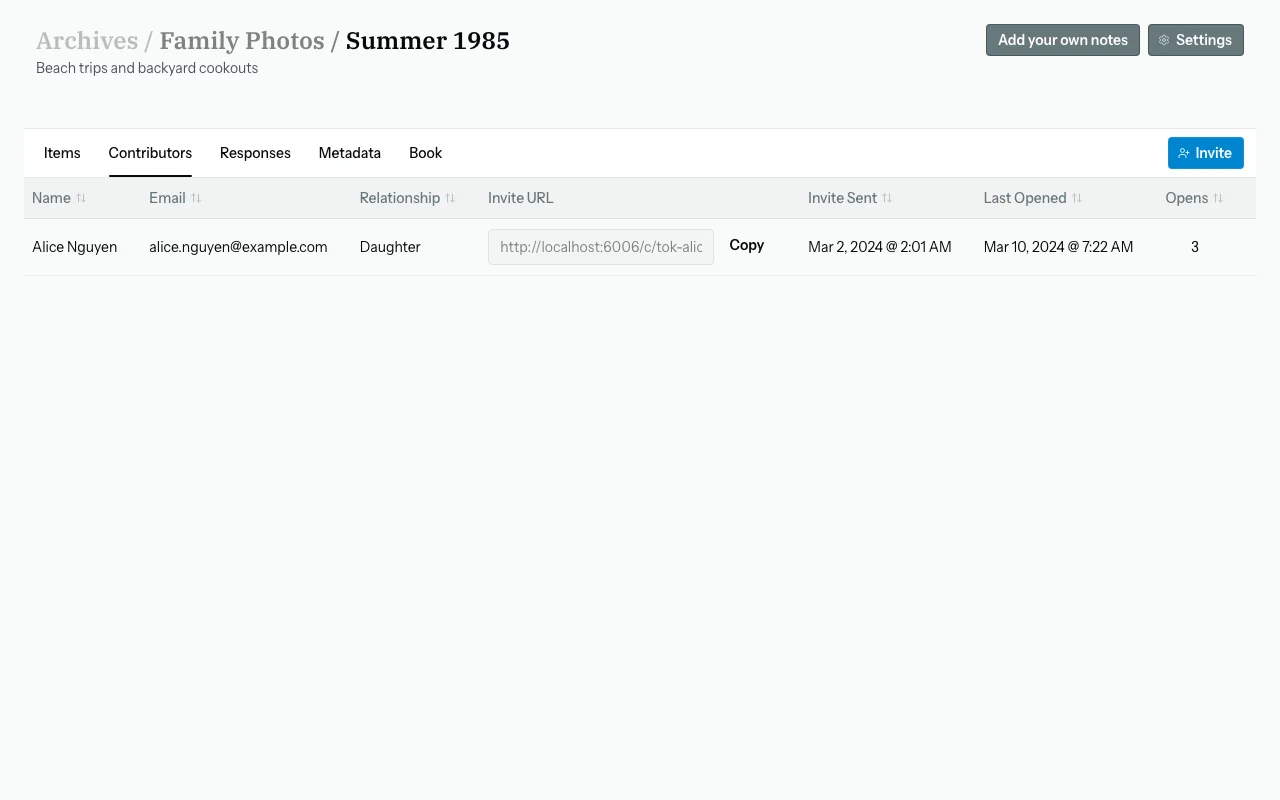
The contributors list shows:
- Name — the name they'll see on their welcome screen
- Email — your reference only (if you entered one)
- Invite Link — with a copy button
- Expiration Date — when the link expires (if set)
- Actions — revoke the invite
Revoking a Contributor
If you need to remove someone's access:
- Find them in the contributors list.
- Click "Revoke" (or the delete/trash icon).
- Confirm the action.
Their link will immediately stop working. Any responses they have already submitted are preserved.
Batch Status & Contributor Access
When you add your first contributor, the batch status automatically changes from "Created" to "Invited". Once contributors start submitting responses, it moves to "Active".
You can control when contributors can access the batch:
- Pause: Click the pause/close button to set the batch to "Complete" — contributors can no longer submit new responses.
- Re-enable: Click the resume button to set it back to "Active".
Saved Contributors
If you invite the same family member across multiple batches, Zeuge saves their details for quick re-inviting:
- When you click "Add Contributor," look for a saved contributors dropdown.
- Select a saved name — their details will pre-fill.
- Click "Add" to create the invite for this batch.
Contributor Limits by Plan
The number of contributors you can invite to a single batch depends on your plan:
| Plan | Contributors per Batch |
|---|---|
| Free | 2 |
| Small | 10 |
| Medium | 50 |
| Large | Unlimited |
You can upgrade your plan from the Settings page.
Common Questions
How do I send the invite link via email?
Zeuge doesn't send emails automatically. You copy the link and paste it into your own email, text, or messaging app. This gives you full control over how and when you contact contributors.
Can I invite multiple people at once?
You need to create one invite per person. This ensures each contributor's responses are tracked separately and attributed to them by name.
How will I know when someone has contributed?
Check the Responses tab on your batch. New responses will appear there as they are submitted. The batch status also moves to "Active" once the first response comes in.
What if a contributor needs more time — can I extend their link?
Currently, you would need to revoke the old invite and create a new one with a later expiration date.
Can I invite someone to multiple batches?
Yes — create a separate invite for each batch. Each batch gets its own unique link. Use the Saved Contributors feature to re-invite them quickly.
What if a contributor can't open the link?
Make sure the full link was shared (sometimes messaging apps truncate long URLs). Ask them to copy and paste the full link into their browser's address bar.