How to Write Text Memories
Audience: Contributors — family members or friends who prefer to type their memories rather than record audio or video.
The "Write your memories" option lets you tap a photo and type what you remember. No microphone or camera needed.
Before You Start
- All you need is a keyboard (or the on-screen keyboard on a phone or tablet).
- No microphone or camera permission is needed.
Step 1 — Tap "Write your memories" on the Welcome Screen
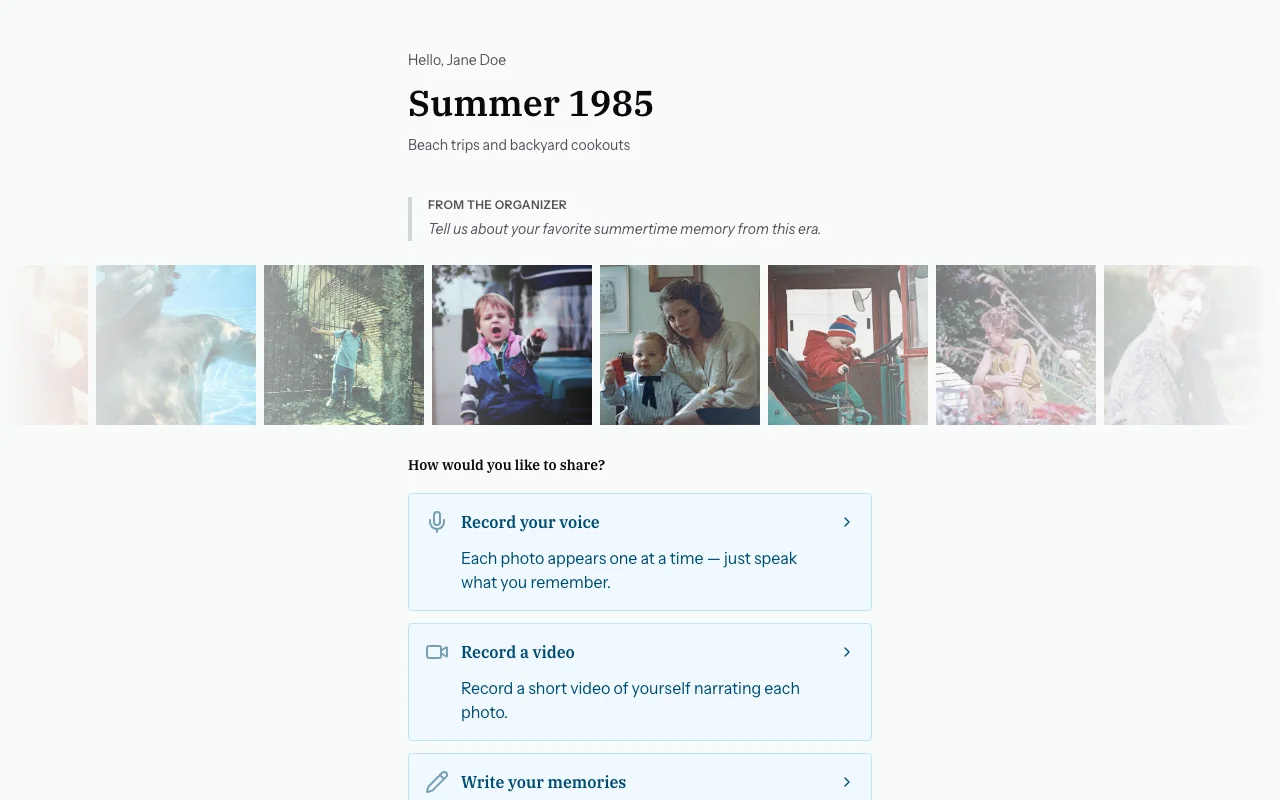
Step 2 — The Photo Strip and Text Panel
You will see a layout with two areas:
- A strip of photo thumbnails running along the side — tap any photo to select it.
- A text area on the right where you type your memory for the selected photo.
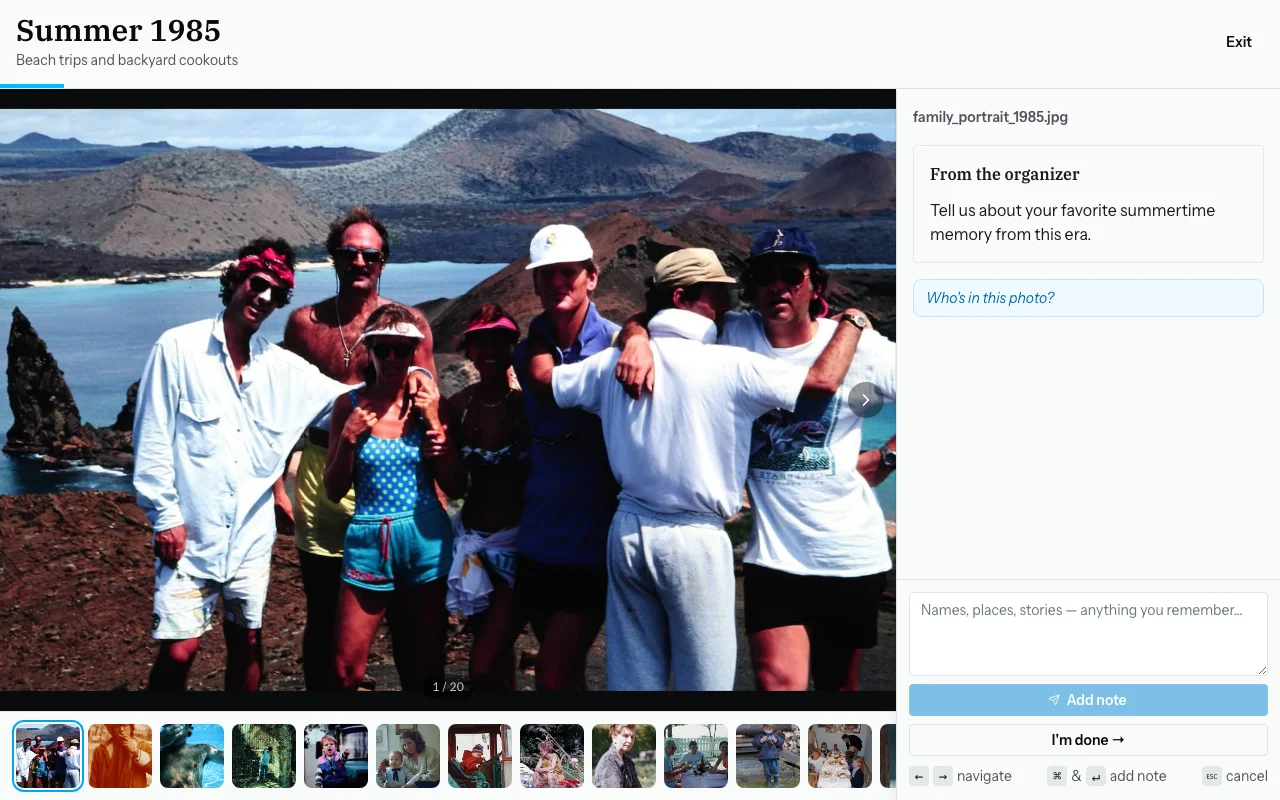
If the organiser left a note (e.g., "Please share anything you remember about the people and places"), it will appear above the text box as a reminder.
Step 3 — Tap a Photo to Select It
Tap any thumbnail in the strip. The photo will become highlighted to show it is selected.
Step 4 — Type Your Memory
In the text area, write what you remember about the photo. There is no minimum or maximum — even a few words help enormously.
Useful things to include:
- Names of people in the photo (even a first name, a nickname, or a relationship like "my uncle")
- When it was taken (year, decade, or season — "around 1975" is fine)
- Where it was taken (city, country, or just "the old house")
- What was happening — the occasion, or just a brief description
- Any stories or memories that come to mind
Example:
"That's Mum and Dad at their 25th anniversary dinner, I think around 1982. It was at the Italian place on Fifth Street. The man in the back with the moustache is Uncle Frank."
Step 5 — Save Your Memory
Tap "Save" (or press Enter on a keyboard). Your note is saved and a badge appears on the photo to show it now has a memory.
Select the next photo and repeat for as many photos as you like.
Step 6 — When You Are Done
Tap "Done" when you have finished. A thank-you screen will confirm your contribution.
You do not have to respond to every photo. Skip anything you do not recognise.
Common Questions
Do I have to comment on every photo?
No. Skip anything you do not know or have nothing to say about. Quality matters more than quantity.
How much should I write?
As much or as little as you like. Even one name or "taken in Ireland" is helpful.
Can I come back and add more?
Yes — open the same invite link again, select the same photo, and add another note.
My phone keeps autocorrecting names. What should I do?
Re-type the correct spelling after autocorrect changes it. You can also turn off autocorrect temporarily in your phone's keyboard settings.