How to Review Responses

Audience: Archivists — people reviewing and managing the voice, video, and text memories submitted by contributors.

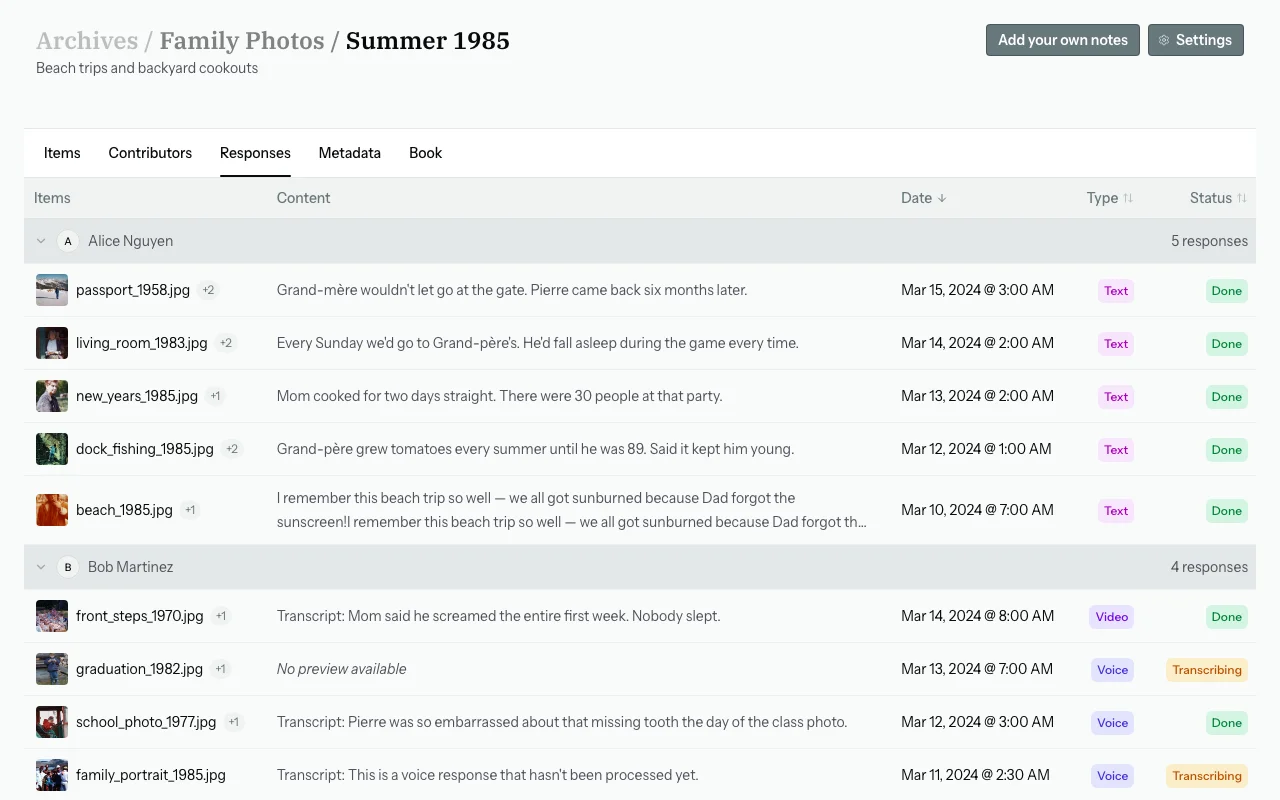
Once contributors start submitting their memories, you can review everything from the Responses tab. This guide shows you how to listen to recordings, read transcripts, review extracted metadata, and manage individual responses.


Step 1 — Open the Responses Tab

From your batch detail page, click the "Responses" tab.

📸 [SCREENSHOT: Batch detail page with "Responses" tab selected — showing response count and list of response cards]

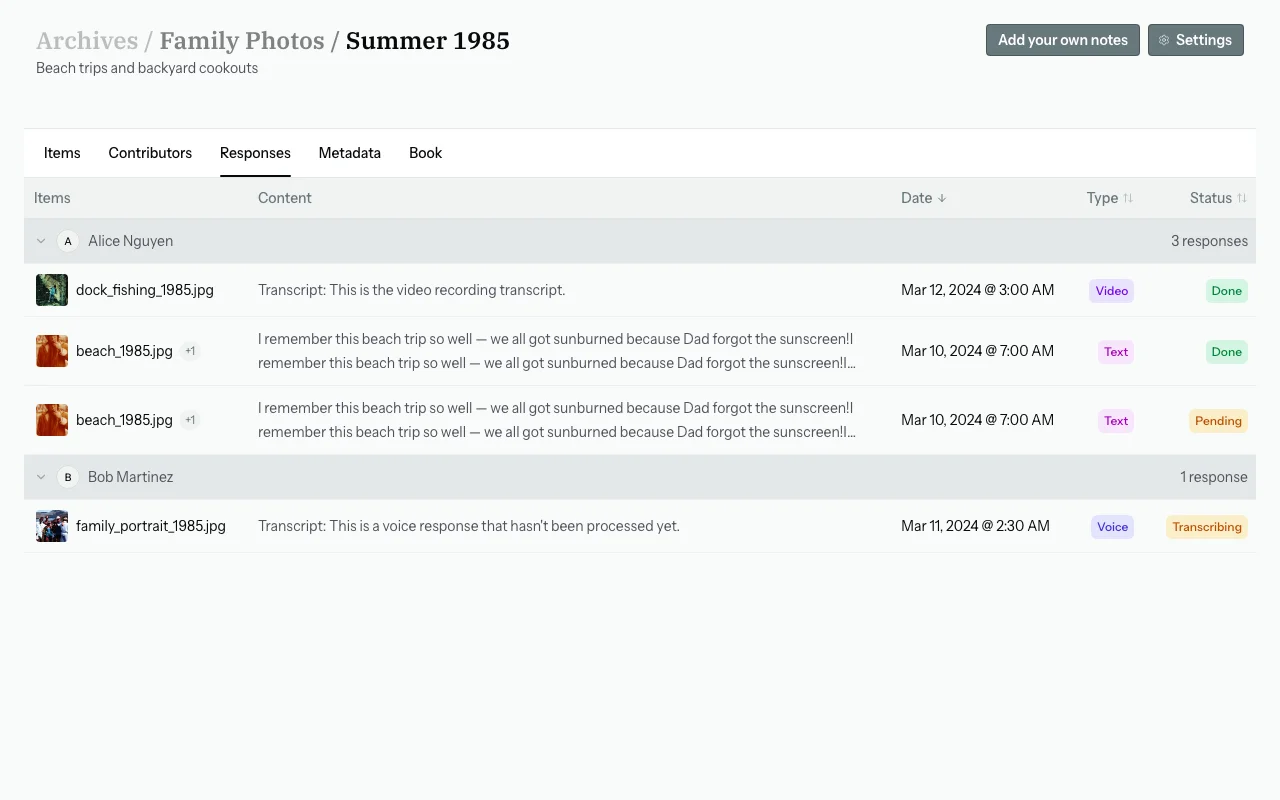
You'll see a count like "8 responses" and a list of response cards, one per submission.


Understanding a Response Card

Each response card shows:

Element Description
Contributor name Who submitted this response
Photos covered A thumbnail stack showing which photos this response relates to
Response type 🎤 Voice, ✏️ Text, or 🎥 Video
Duration Length of the audio or video (if applicable)
Processing status Current stage in the pipeline (see below)
Transcript Auto-generated text from the voice/video recording (once processed)
Extracted metadata Dates, names, places, tags, descriptions parsed by AI from the transcript

📸 [SCREENSHOT: A fully processed response card showing contributor name, item thumbnails, transcript, and extracted metadata fields]


Processing Statuses Explained

When a voice or video response is submitted, it goes through an automatic processing pipeline. The status badge shows where it is:

Status Meaning
Pending Just received, waiting to be picked up
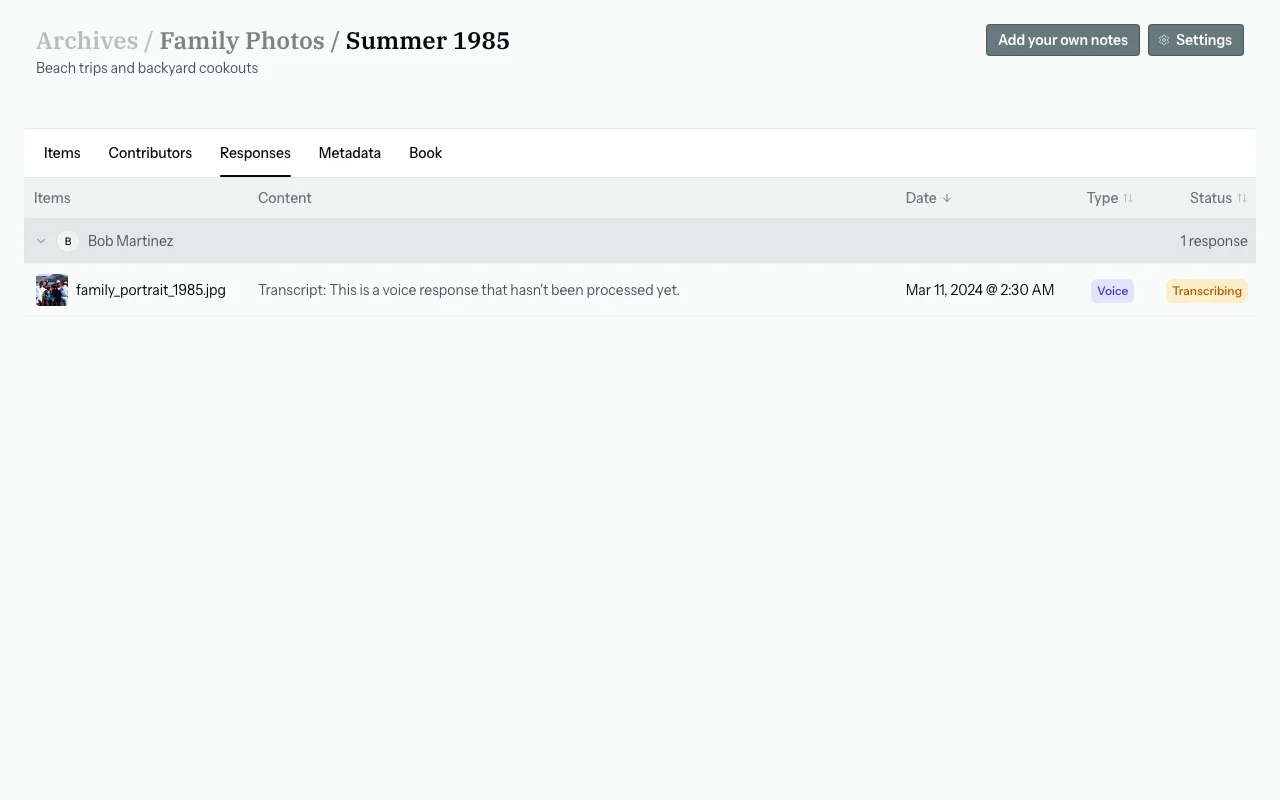
Transcribing Being converted from speech to text
Extracting AI is pulling out dates, names, places, etc.
Processing Final steps before completion
Done Fully processed — transcript and metadata available
Error Something went wrong — can be reprocessed manually

Text responses skip the "Transcribing" step and go straight to "Extracting."

📸 [SCREENSHOT: A response card showing a "Transcribing" status badge (in-progress state)]


Listening to a Voice Recording

On a response card for a voice response:

  1. Find the audio player below the transcript.
  2. Click the play button (▶) to listen.

📸 [SCREENSHOT: A voice response card with the audio player visible and the play button highlighted]


Watching a Video Recording

On a response card for a video response:

  1. A video thumbnail is displayed.
  2. Click the thumbnail or play button to watch the video.

📸 [SCREENSHOT: A video response card with the video thumbnail and play button]


Reading the Transcript

For voice and video responses, Zeuge automatically generates a written transcript. It appears directly on the response card.

Example transcript: "That's Uncle Bob at the beach house in Maine, summer of '89. Bob always wore that red shirt. I think Aunt Carol took this one."

Transcripts are generated by speech-to-text technology and are usually very accurate, but occasional errors can occur — especially with names, places, or accents. Transcripts are used as input for the AI metadata extraction, but you can manually correct extracted metadata in the Metadata tab.


Viewing Extracted Metadata

Below the transcript on each response card, you'll see the extracted metadata fields:

  • Date — e.g., "Summer 1989"
  • Location — e.g., "beach house in Maine"
  • People — e.g., "Uncle Bob," "Aunt Carol"
  • Description — e.g., "Uncle Bob at a beach house in Maine."
  • Stories — e.g., "Contributor recalls Bob wearing his red shirt."
  • Tags — e.g., "beach," "Maine," "summer"

Each field shows a source badge:

  • "auto" — populated by AI from the transcript
  • "manual" — overridden by you in the Metadata tab

📸 [SCREENSHOT: A response card showing the extracted metadata fields with source badges]


Reprocessing a Response

If a response shows an Error status, or if you want to re-run the speech-to-text or AI extraction:

  1. Click the dropdown menu (⋮) on the response card.
  2. Click "Reprocess".

Zeuge will re-run the full pipeline for that response (transcription → extraction). This is useful if:

  • The audio was initially too noisy but has since been improved.
  • The extraction produced incorrect results and you want to retry.
  • A temporary processing failure occurred.

📸 [SCREENSHOT: The response card dropdown menu open with "Reprocess" highlighted]


Deleting a Response

To remove a response:

  1. Click the dropdown menu (⋮) on the response card.
  2. Click "Delete".
  3. Confirm the deletion.

⚠️ Deleting a response also removes its transcript and extracted metadata. The curated metadata for the items covered by that response may change when you next recompute. This action cannot be undone.

📸 [SCREENSHOT: The response card dropdown with "Delete" option highlighted]


Common Questions

How long does processing take? Voice and video responses typically complete within 30–120 seconds depending on length and current system load. Text responses are usually faster (under 30 seconds) since they skip transcription.

The transcript has errors — does this affect the metadata? Yes — the transcript is what the AI reads to extract names and dates. Minor errors usually don't matter, but significant errors (e.g., a proper name badly garbled) may cause the AI to miss it. You can manually correct the extracted metadata in the Metadata tab.

A contributor says they submitted a response but I can't see it. Why? Check if the response is still processing (Pending/Transcribing). It can sometimes take a few minutes to appear. If it's been more than 10 minutes, ask the contributor to re-submit using the same link.

Can I download the audio files? Audio files are stored securely in the archive. Bulk download is not currently available in the UI — contact support if you need archival access to the raw audio files.


Next Steps

Review & Edit Extracted Metadata