How to Open Your Invite Link
Audience: Contributors — family members or friends who have been invited to share memories about a collection of photos.
Someone has set up a collection of old family photos and would like your help remembering the people, places, and stories in them. They sent you a special link. This article explains what to do when you open it.
What You Need
- The invite link — a web address like
https://zeuge.io/c/abc123xyz - A phone, tablet, or computer
- An internet connection
You do not need to create an account, download an app, or remember a password.
Step 1 — Open the Link
Open the link the same way you would open any website:
- Tap it in a text message or email on your phone
- Click it in an email on a computer
- Copy and paste it into your browser's address bar
Step 2 — The Welcome Screen
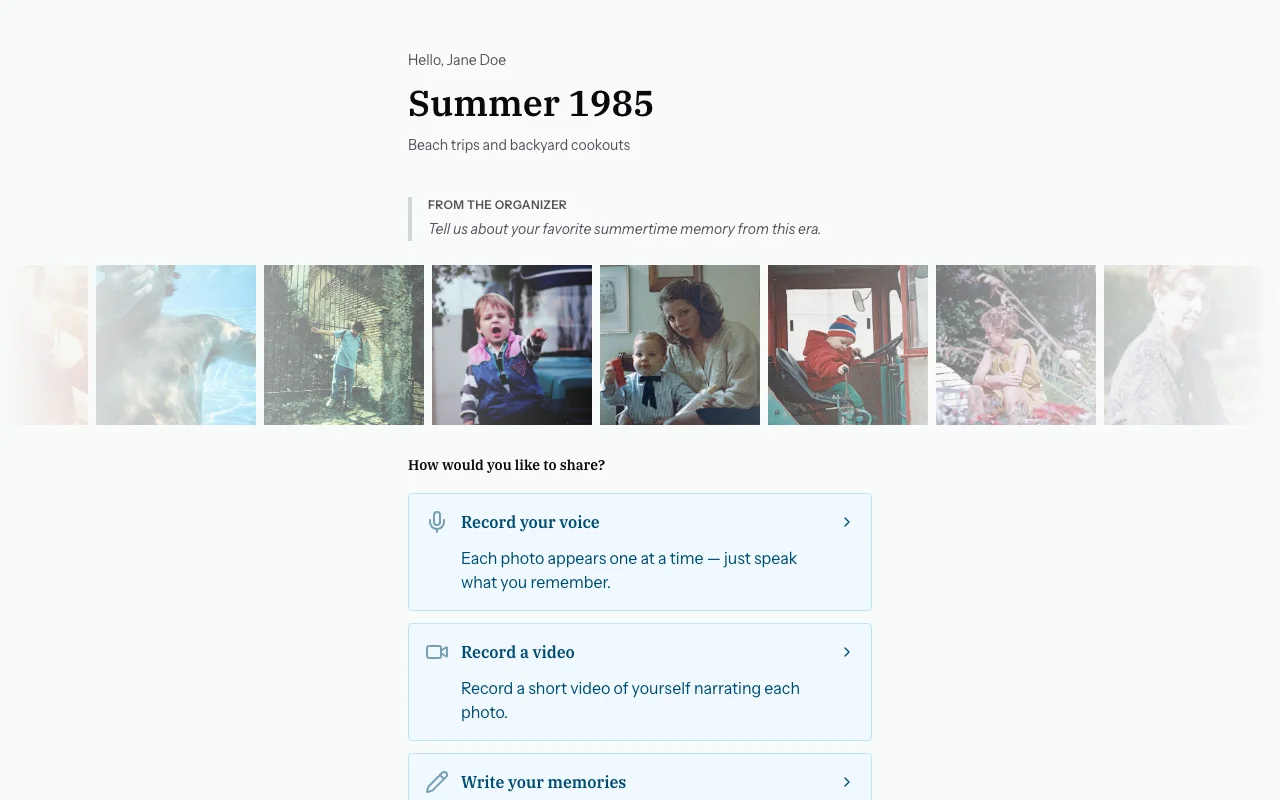
When the page loads you will see a welcome screen that greets you by name:
"Hello, Carol!"
Below your name you will see:
- The name of the collection (for example, "Johnson Family Photos 1960–1990")
- A message from the organiser (if they wrote one) — shown in italics as a note, for example: "Please share anything you remember about the people and places in these photos."
- A row of photo thumbnails so you can see what is in the collection
Step 3 — Choose How to Share
You will see buttons to choose how you would like to share your memories:
| Button | Best for |
|---|---|
| Voice narration | Speaking naturally while each photo is shown to you — the easiest option |
| Video | Recording yourself on camera while talking about the photos |
| Write your memories | Typing notes about each photo — good if you prefer not to speak |
Choose whatever feels comfortable. You can always come back and use a different method.
Common Questions
What if the link says it has expired?
The organiser may have set an expiration date. Contact the person who sent you the link and ask them to send a new one.
What if the page does not load?
Try refreshing or opening it in a different browser. Make sure you copied the whole link.
What if I accidentally close the page?
Open the same link again. Your session is saved, so you can pick up where you left off. See Resuming Your Session.
What if I do not recognise any of the photos?
That is fine. Skip photos you cannot help with. Even one name or rough date on a single photo is valuable.
Next Steps
To speak your memories: → Recording Voice Memories
To type your memories: → Writing Text Memories
To record yourself on video: → Recording Video Memories