How to Record Voice Memories

Audience: Contributors β€” people sharing memories about photos using the Voice Narration feature.

The Voice Narration mode lets you speak naturally about the photos in the collection, one at a time. Think of it like leaving a voicemail for the family archive β€” you just talk about what you remember, and Zeuge takes care of writing it down.


Before You Start

  • You'll need a microphone. On a smartphone or laptop, your built-in microphone works great.
  • You'll need to be somewhere you can speak freely. A quiet room works best.
  • Make sure your browser has permission to use your microphone (the app will guide you through this).

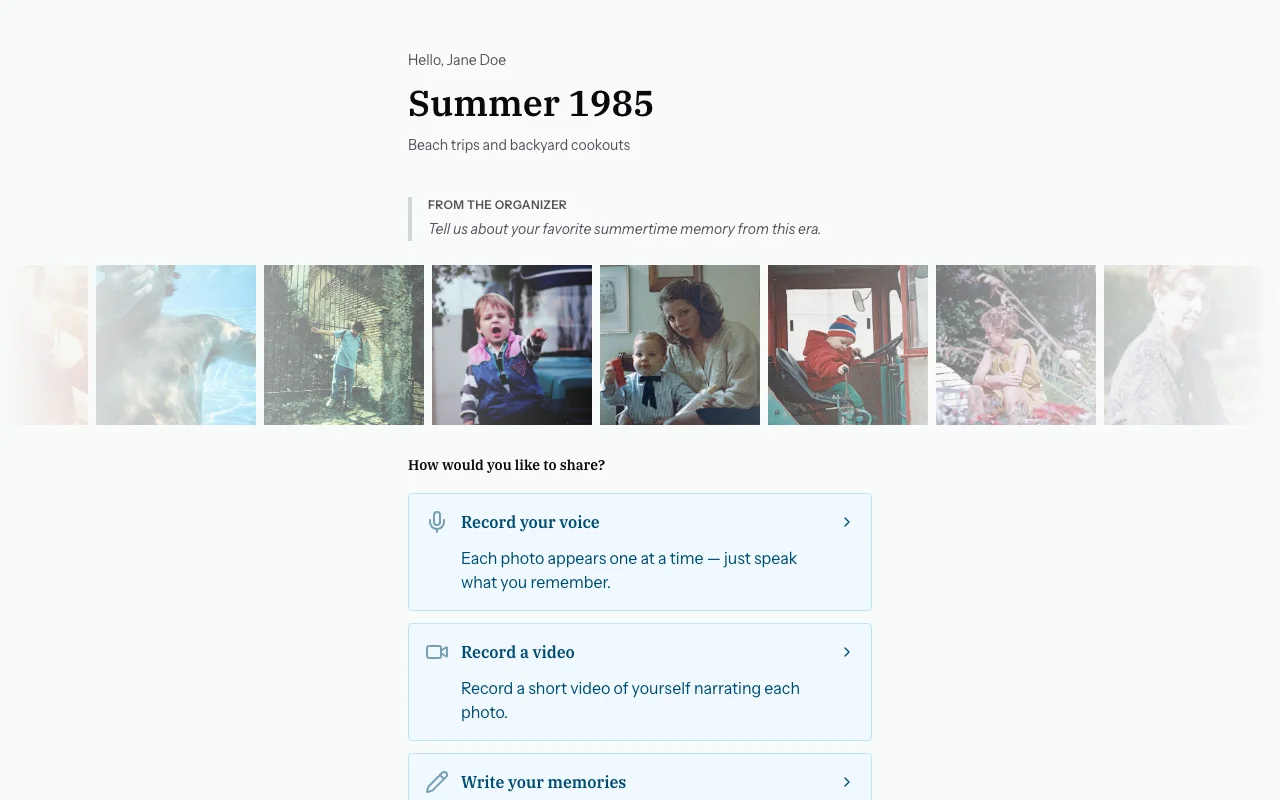
Step 1 β€” Choose "Voice Narration"

From the welcome screen, tap or click "Voice Narration".

πŸ“Έ [SCREENSHOT: Welcome screen with "Voice Narration" button highlighted]


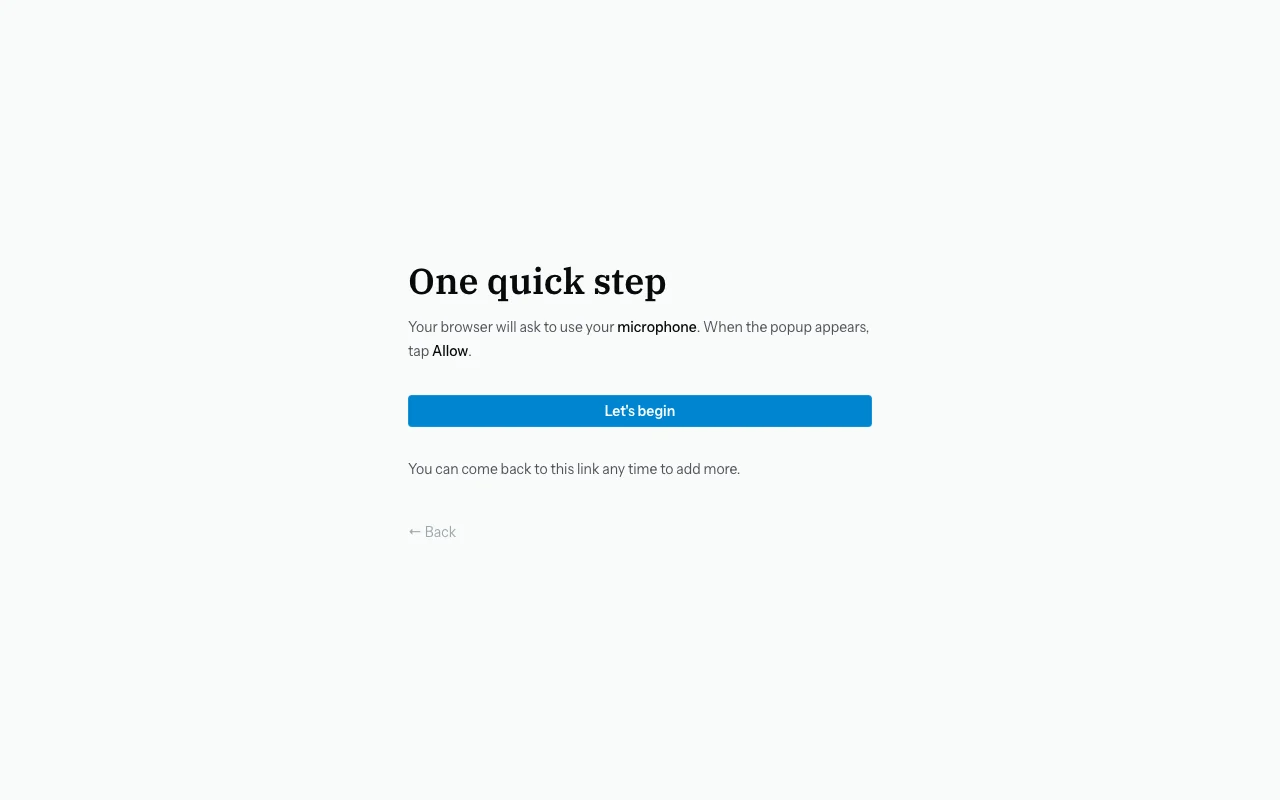
Step 2 β€” Grant Microphone Permission

The first time you use voice narration, your browser will ask for permission to use your microphone. A small dialog will appear from your browser (not from Zeuge itself) asking something like:

"zeuge.io wants to use your microphone. Allow?"

Click or tap "Allow".

πŸ“Έ [SCREENSHOT: Browser microphone permission prompt (Chrome/Safari example)]

Tip: If you accidentally click "Block," you can reset this in your browser settings. On most phones: tap the lock icon πŸ”’ in the address bar β†’ tap "Microphone" β†’ change to "Allow."


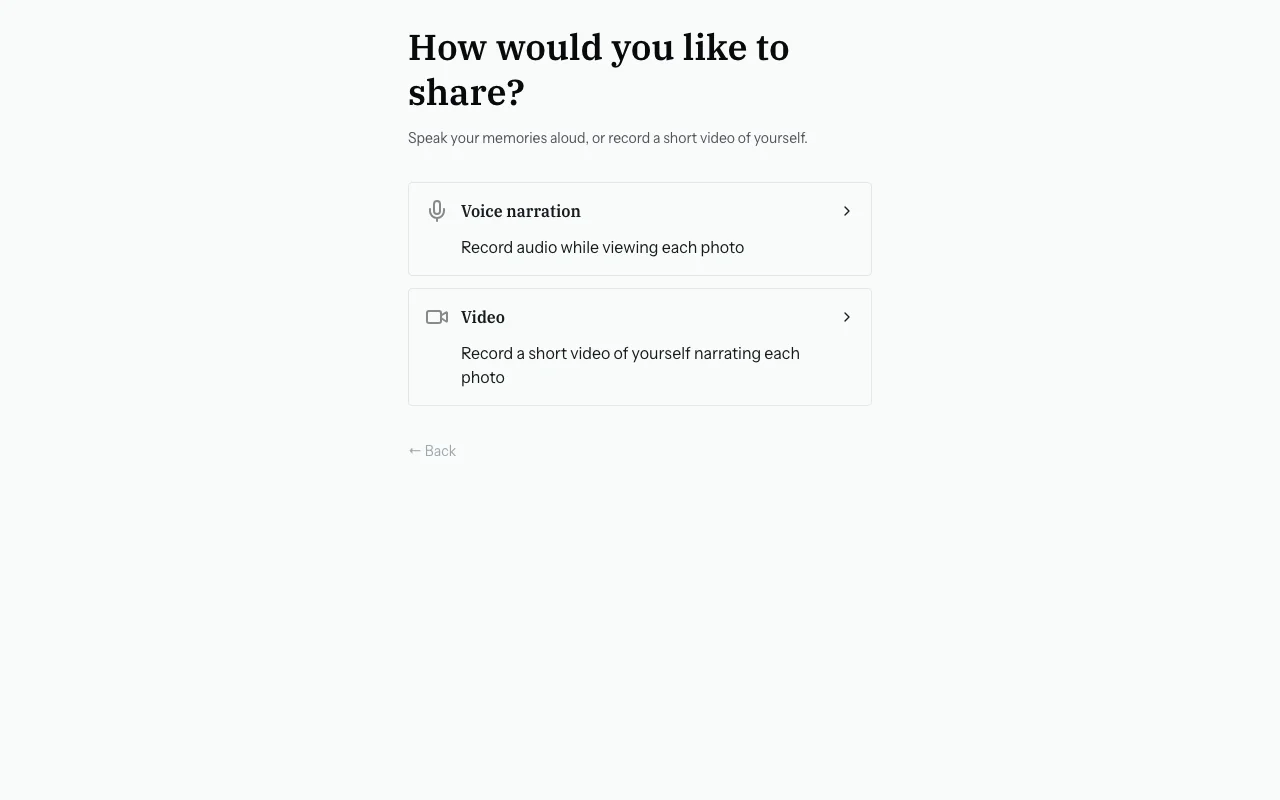
Step 3 β€” Choose Your Recording Mode

After granting microphone permission, you'll be asked how you'd like to record:

  • Voice Narration β€” Record your voice while viewing photos
  • Video Narration β€” Record yourself on camera (see Recording Video Memories for that guide)

Choose "Voice Narration" to continue.

πŸ“Έ [SCREENSHOT: The recording mode selection screen with two cards]


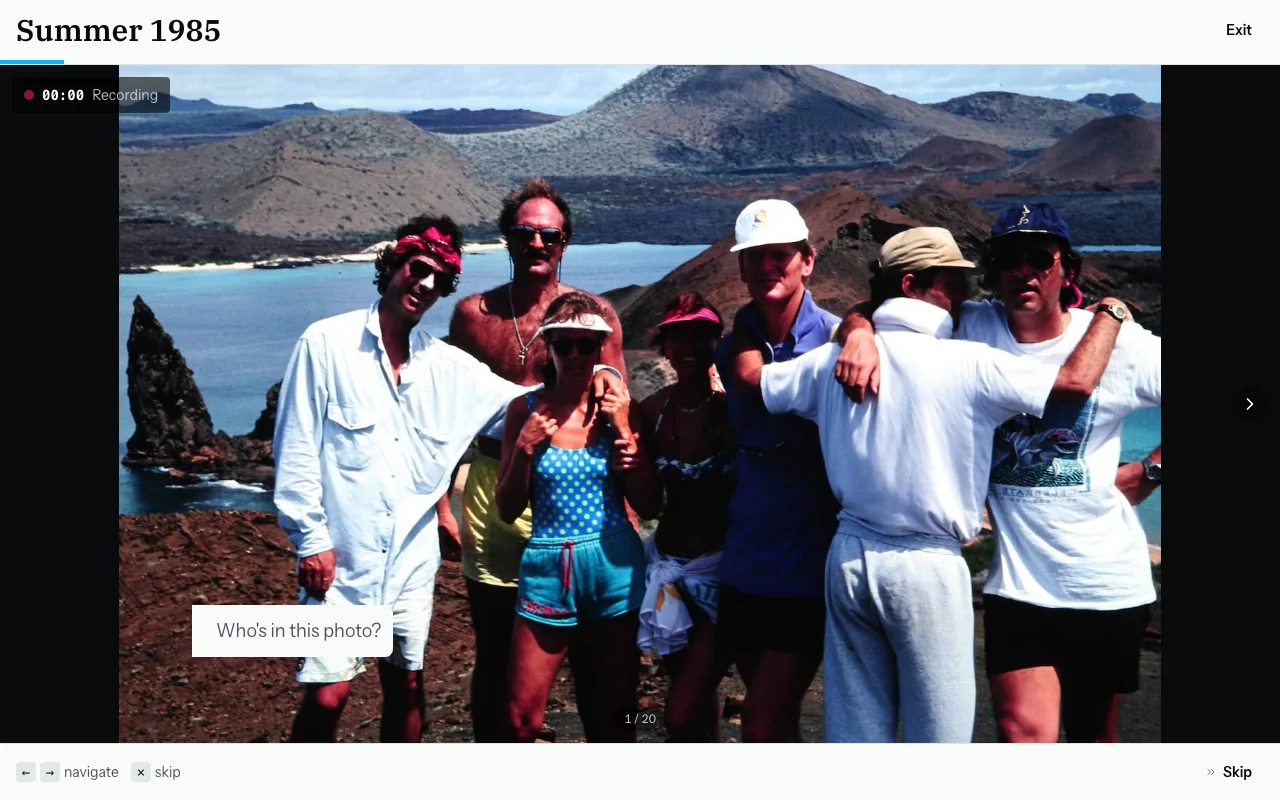
Step 4 β€” The Photo Carousel

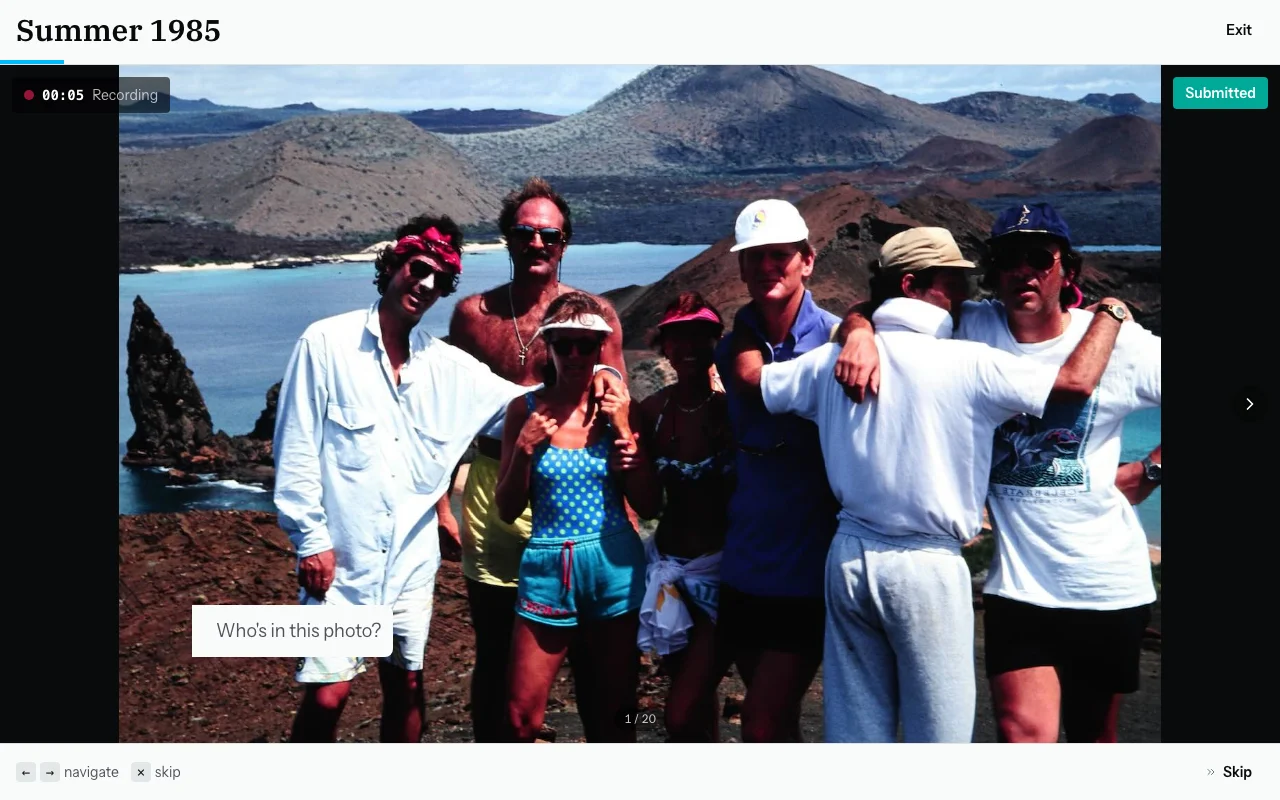
You'll now see the photo carousel β€” a large display of photos, one at a time.

Here's what you'll see:

  • The current photo, displayed large in the center
  • A counter like "1 of 34" showing which photo you're on
  • Back and forward arrows to move between photos
  • A large blue record button at the bottom center

πŸ“Έ [SCREENSHOT: The carousel UI with photo displayed, item counter, and the blue record button]


Step 5 β€” Record a Memory

When you're ready to speak about the current photo:

  1. Press the blue record button (●) β€” it will change color and you'll see a waveform animation to confirm the microphone is active.
  2. Speak naturally. Say whatever you remember β€” names, places, years, stories, feelings. There's no script and no right or wrong answer. For example:

    "That's my Aunt Dorothy at what I think was the old house on Maple Street. I'd guess this is maybe 1967 or '68. She always wore her hair like that."

  3. Press the button again when you're done. Your recording will be saved automatically.

πŸ“Έ [SCREEN RECORDING: Demonstrating pressing record, speaking, and stopping β€” with the waveform visible during recording]

Tips for a good recording:

  • You don't need to speak in complete sentences β€” short phrases are fine.
  • One photo at a time is easier, but you can cover multiple if they're related (see below).
  • Don't worry about mistakes β€” just speak naturally. You can re-record any photo.

Step 6 β€” Move to the Next Photo

After saving your recording, the carousel will automatically move to the next photo.

If you want to move manually:

  • Tap the right arrow (or press the Right Arrow key on a keyboard) to go forward.
  • Tap the left arrow (or press the Left Arrow key) to go back.

Skipping a photo: If you don't recognize a photo or don't have anything to share, just use the arrows to move past it. You can always come back.

πŸ“Έ [SCREENSHOT: Carousel showing a photo with a green checkmark overlay indicating a memory has been saved for it]


Step 7 β€” Recording About Multiple Photos at Once

Sometimes a group of photos goes together β€” for example, several shots from the same vacation or event. You can record one memory that covers all of them at once.

To do this:

  1. Hold Shift and click/tap the photos you want to include.
  2. A selection indicator will show how many photos are selected (e.g., "Recording for 3 items").
  3. Record your memory as usual β€” it will be linked to all selected photos.
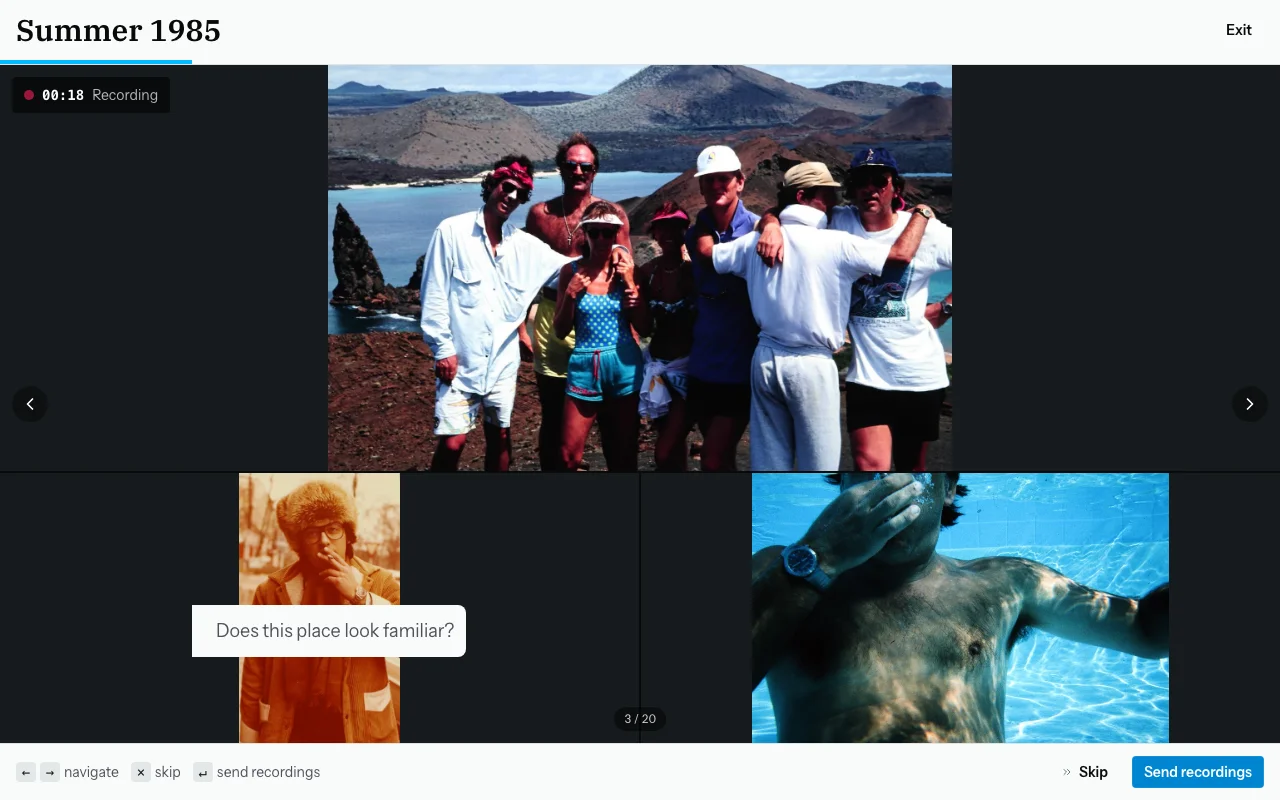
πŸ“Έ [SCREENSHOT: Carousel with multiple items selected shown as highlighted thumbnails]


Step 8 β€” When You're Done

When you've recorded memories for all the photos you want to share, tap or click "Done" (or the equivalent finish button).

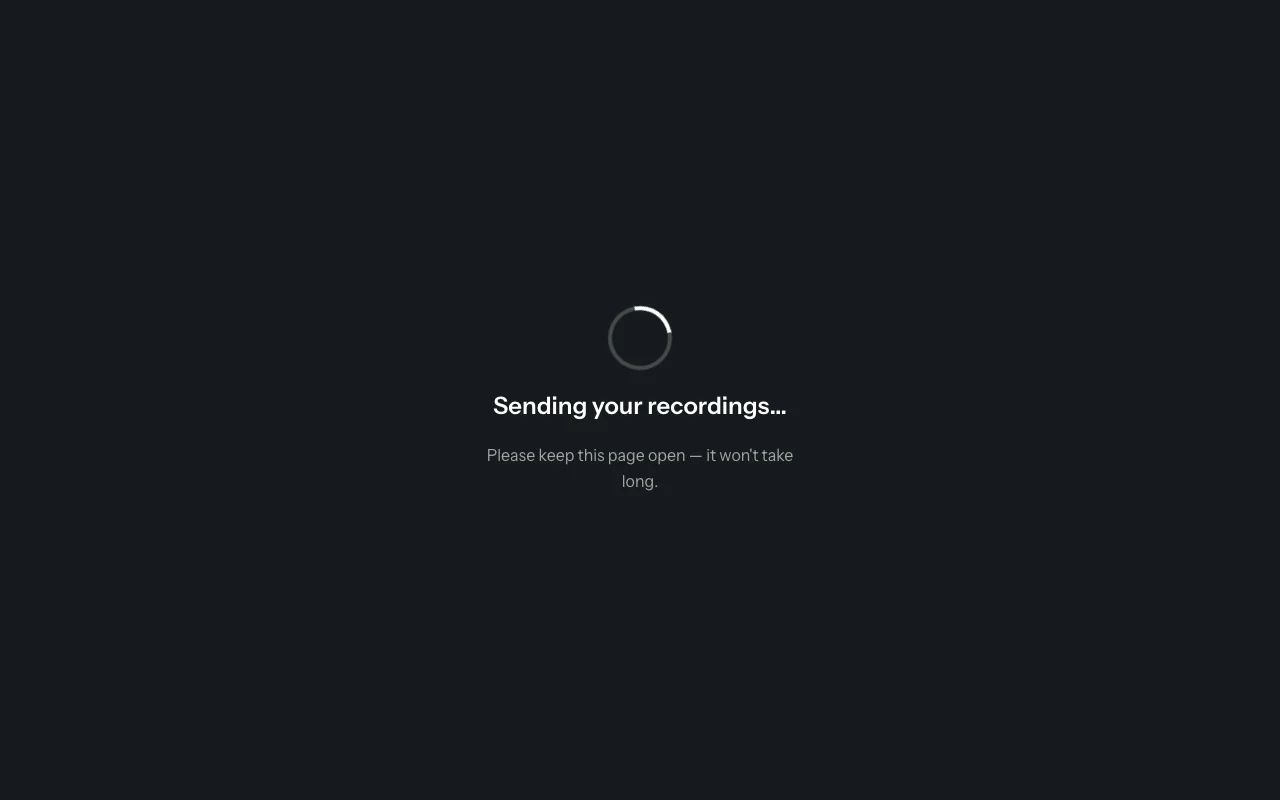
You'll see a brief "Finalizing…" screen while Zeuge processes your recordings.

πŸ“Έ [SCREENSHOT: The "Finalizing..." loading screen]

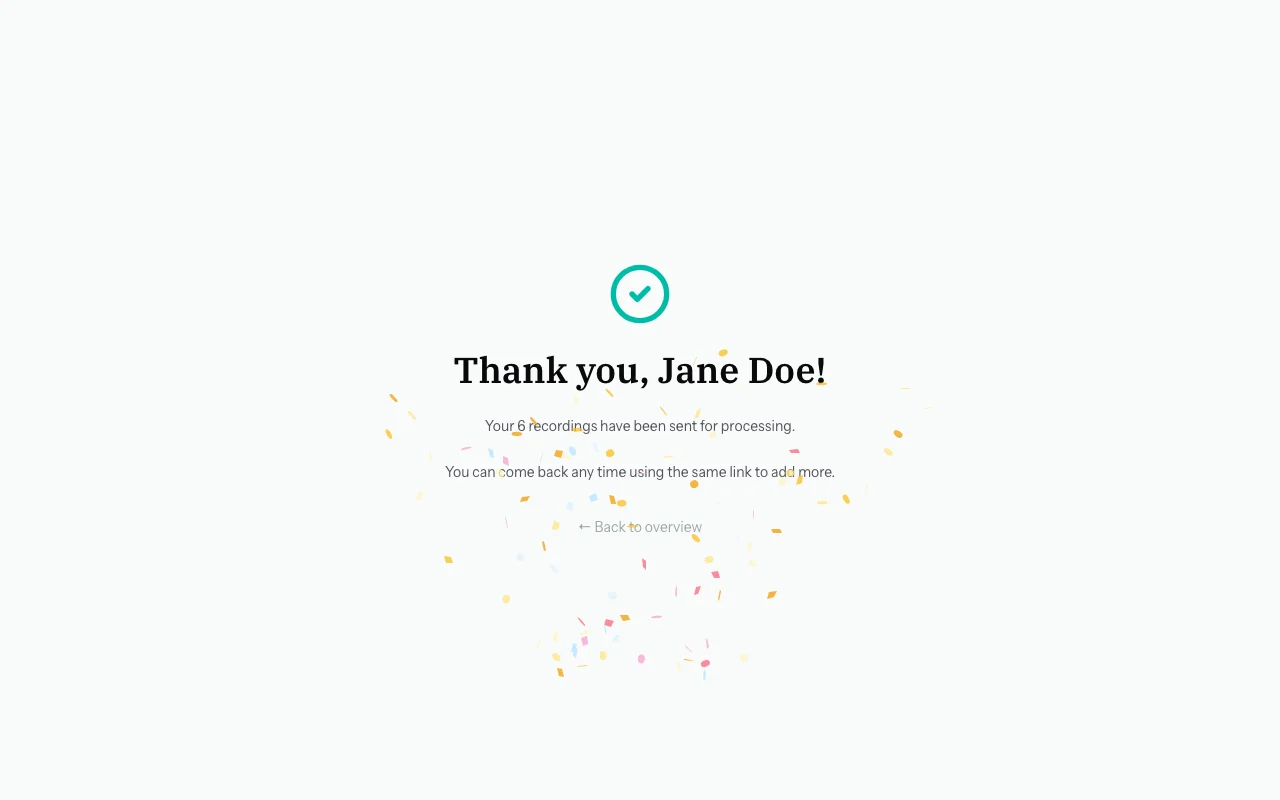
Then you'll see a thank-you screen:

"Thank you for sharing your memories! You shared 12 memories."

πŸ“Έ [SCREENSHOT: The "Thank You" / Done screen with response count]


Re-Recording a Photo

If you want to change a recording you already made:

  1. Use the arrows to navigate back to that photo.
  2. Press the record button again to make a new recording.
  3. Your new recording will replace the old draft.

Common Questions

My microphone isn't picking up my voice well. What should I do? Try speaking slightly louder or holding your phone closer to your mouth. Make sure no other apps are using the microphone at the same time.

I accidentally pressed stop too soon. Can I redo it? Yes! Just navigate back to that photo and record again.

I closed the page while recording. Did I lose my work? Draft recordings are saved as you go. If you had already pressed "Save" after a recording, it is safe. If you closed during an active recording, that single clip may not have been saved β€” but all previously saved recordings are fine.

Can I listen back to my recording? Currently, playback is not available in the contributor view. The person who invited you will be able to listen to all your recordings.

The page says I've already recorded this photo. Can I still record again? Yes. Photos with existing recordings show a visual indicator, but you can still add more. Each new recording is saved alongside the previous one.


Next Steps

  • When you're finished: your memories will be transcribed automatically and the organizer will be notified.
  • To come back later: β†’ Resuming Your Session
  • To switch to text instead: β†’ Writing Text Memories